View Adhoc Assessments

Viewing Adhoc Assessments
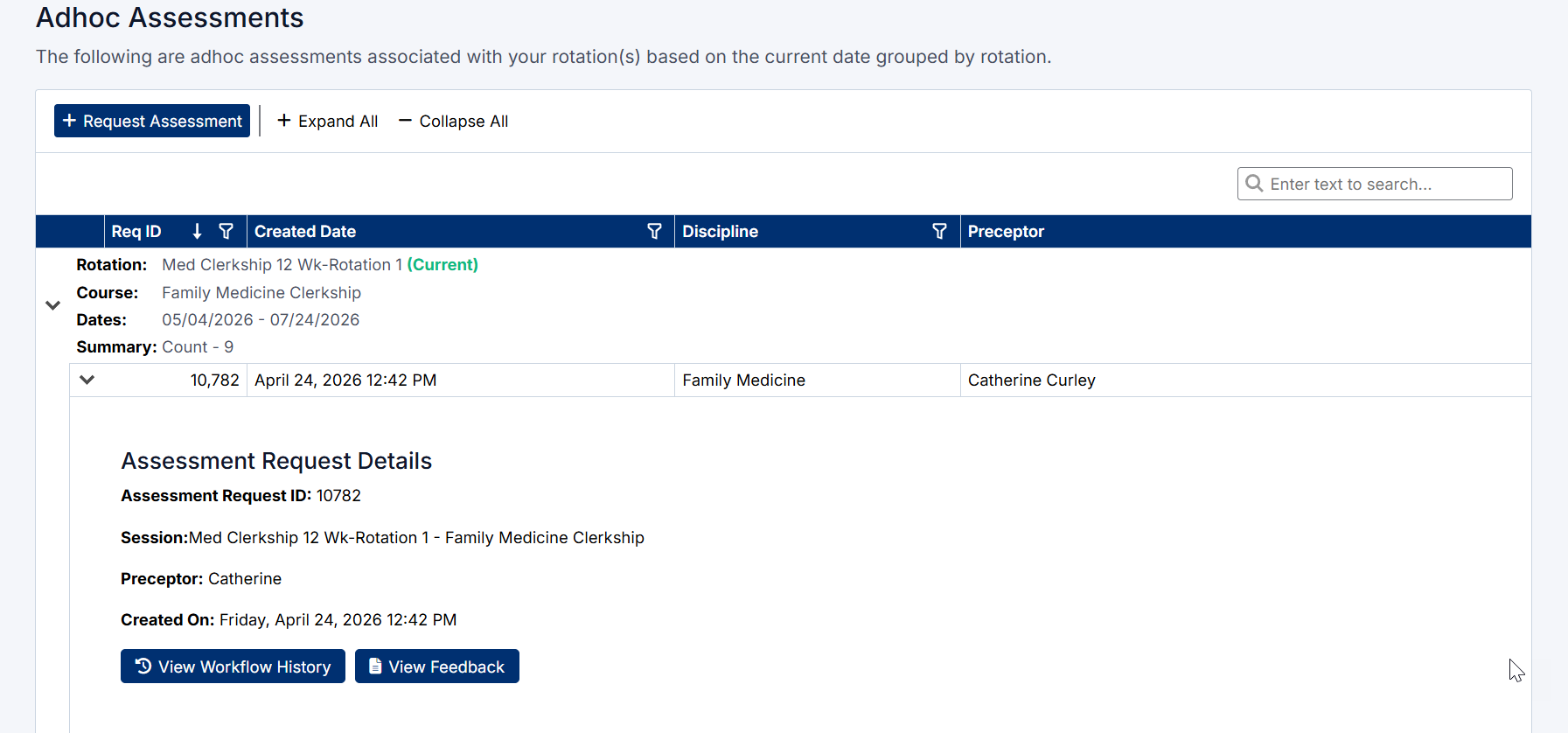
The page displays all adhoc assessment requests associated with your rotations.
- Assessments are grouped by rotation (session)
- Active and past rotation assessments are displayed in separate sections
- Each request shows:
- Request ID
- Preceptor name
Click on a request to expand and view additional details.
View Adhoc Assessment
Assessment Request Information
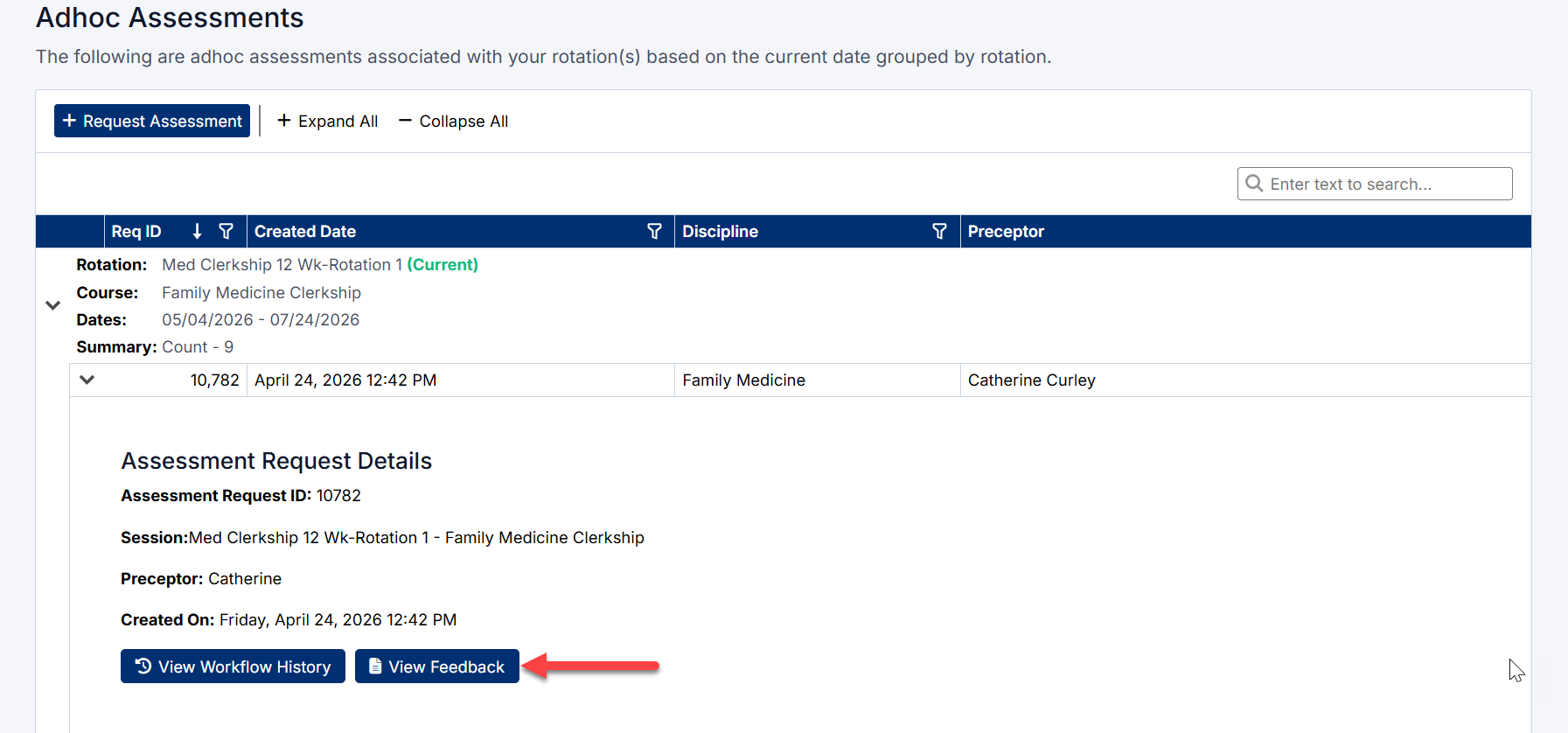
When expanded, the assessment displays key details including:
- Assessment Request ID
- Session and course
- Selected preceptor(s)
- Date the request was created
This section gives a clear overview of who the request was sent to and when.
Available Actions
Within the assessment details, you can access the following:
- View Feedback
Opens the completed assessment form submitted by the preceptor - View Workflow History
Displays the full timeline of the request, including: - When the request was sent
- Reminder notifications
- Current status (e.g. pending or completed)
- View QR Code
Generates a QR code that allows the preceptor to quickly access the assessment form on a mobile device
View Adhoc Assessment Details
Tracking Progress with Workflow History
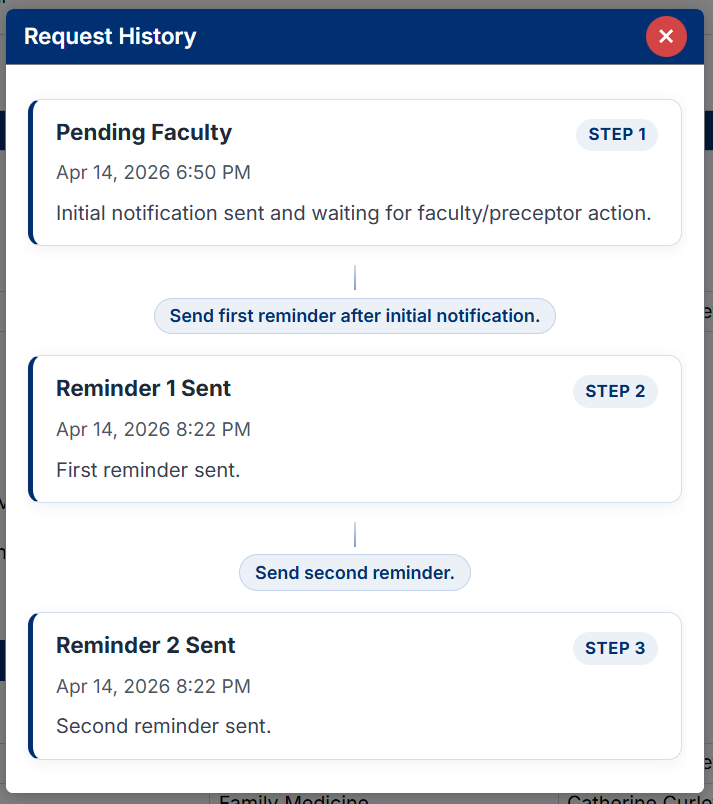
Select View Workflow History to monitor the status of your request.
This includes:
- Initial request notification
- Reminder emails sent to the preceptor
- Current stage of the assessment
Use this view to confirm whether action is still required or if the assessment has been completed.
Workflow history tracking progress of assessment request
Viewing Preceptor Feedback
Once a preceptor has completed the assessment:
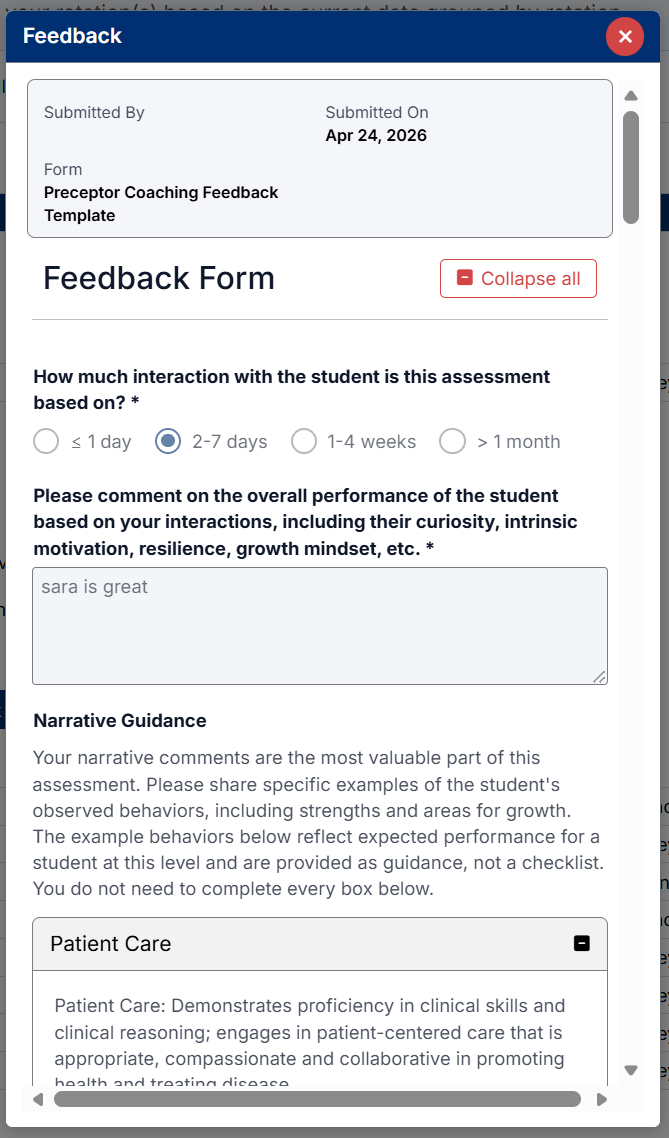
- Click View Feedback
- Review the submitted evaluation, which may include:
- Ratings across clinical competencies
- Written feedback
- Areas of strength
- Areas for improvement
This feedback is essential for tracking your performance and identifying opportunities for growth.
Best Practice
Request ad hoc assessments immediately after a meaningful clinical interaction, and review feedback as soon as it is submitted to reinforce learning while the experience is still fresh.
Created with the Personal Edition of HelpNDoc: Save time and frustration with HelpNDoc's WinHelp HLP to CHM conversion feature