Create Adhoc Assessments

Request an Adhoc Assessment
To request a new assessment:
- Click Request Assessment.
- Select a Session (Rotation) from the dropdown list.
- Select a Preceptor.
- The list of preceptors is filtered based on the selected rotation.
- Click Save to submit the request.
The assessment request will be sent to the selected preceptor.
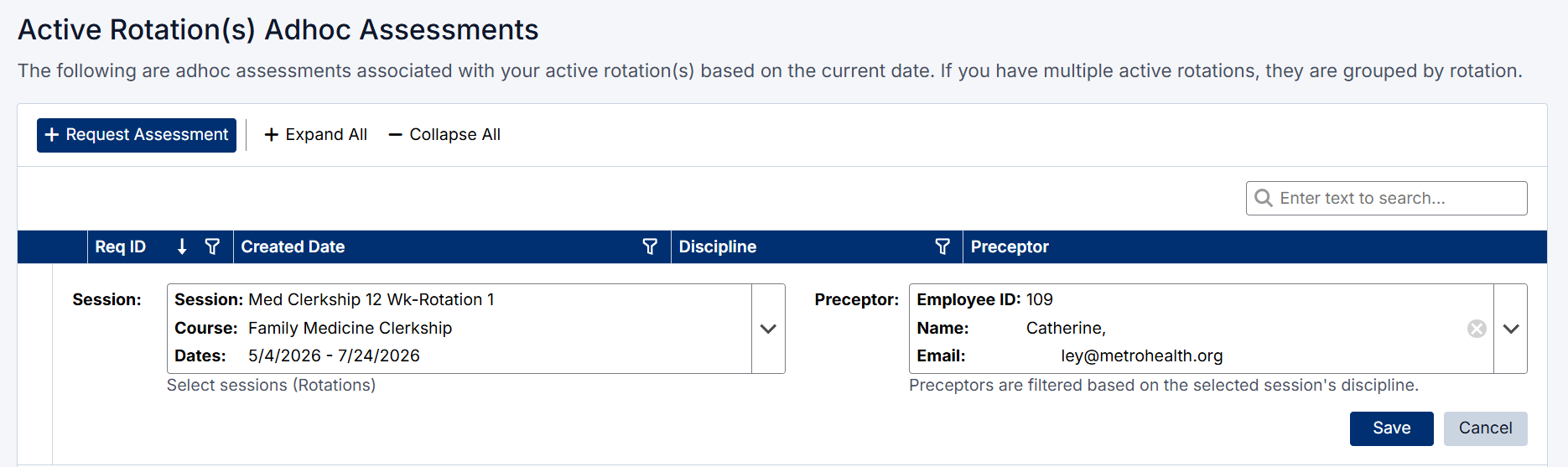
Request an Adhoc Assessment Screen
Using the QR Code (Ad Hoc Assessments)
The My QR Code option on the Ad Hoc Assessments dashboard allows you to quickly generate a QR code to share with your preceptor during a clinical encounter.
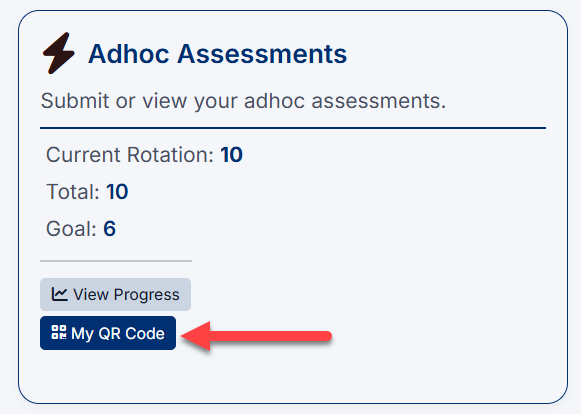
How It Works
- From the dashboard, click My QR Code
- A unique QR code will be generated
- Select the required rotation (if you are enrolled in multiple rotations)
- Ask your preceptor to scan the QR code using their mobile device
This will take them directly to your assessment form, allowing them to complete feedback quickly and efficiently.
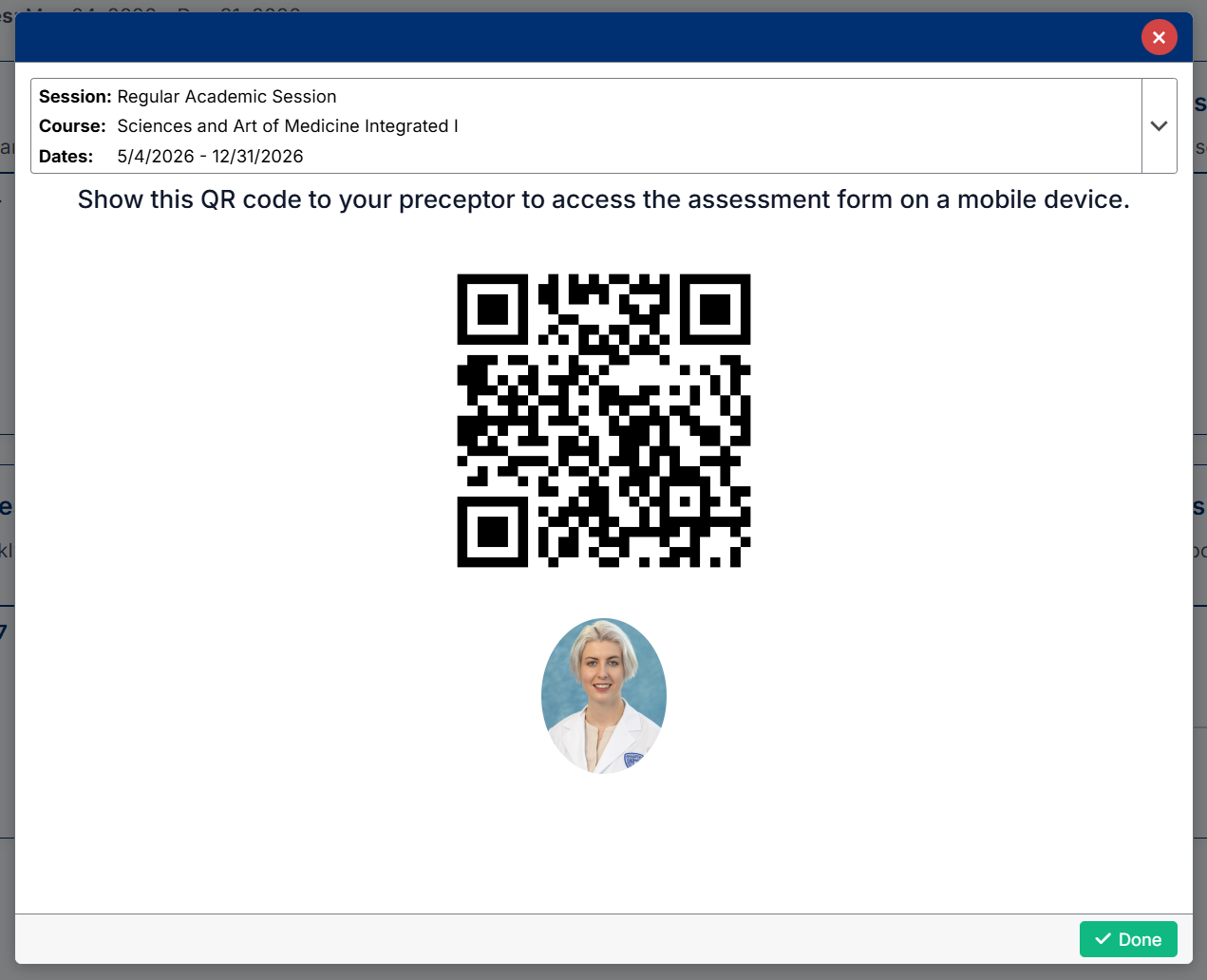
Adhoc Assessment QR Code
When to Use the QR Code
The QR code is designed for real-time use during patient encounters, making it easy to request feedback while the interaction is still fresh.
Important Notes
- The QR code links directly to your assessment form
- It can be used in place of sending a request later
- Preceptors are filtered based on the selected rotation to ensure valid selection
- If no preceptors are available, you may need to confirm your rotation or contact your administrator
Created with the Personal Edition of HelpNDoc: Make Help Documentation a Breeze with a Help Authoring Tool